Showing posts with label Informatica. Show all posts

Friday, 19 August 2016

Slowly Changing Dimension

Slowly Changing Dimension

Dimentions that change over time rather than changing on a regular schedule.

Types of Slowly Changing Dimensions

  • SCD Type 1
  • SCD Type 2
  • SCD Type 3


SCD Type 1

Keeps only the current data and does not maintain the historical data.

i.e., Overwriting the old/existing value.

Example :

Suppose the employee changes his location. i,e from India to USA and then he gets shifted to Germany.

EMPLOYEE STAGING

EMPLOYEE DIMENSION

Employee Dimension


ADV:  Do not consume a lot of space to maintain data
DISADV:  It does not maintain historical data.

SCD Type 2 or Version Number Mapping

Keeps the current data and historical data as well.

It creates a new column PM_VERSION_NUMBER in the table to track the changes and PM_PRIMARY_KEY in the table to maintain the history.

EMPLOYEE DIMENSION- VERSION MAPPING


SCD Type 2 or Flag Mapping

Keeps the current data and historical data as well.

It creates a new column PM_CURRENT_FLAG in the table to track the changes and PM_PRIMARY_KEY in the table to maintain the history.

EMPLOYEE DIMENSION - FLAG MAPPING


SCD Type 2 or Effective date range Mapping

Keeps the current data and historical data as well.

It creates PM_BEGIN_DATE and PM_END_DATE to maintain the date range in the table to track the changes and
PM_PRIMARY_KEY in the table to maintain the history.


EMPLOYEE DIMENSION - EFFECTIVE DATE RANGE MAPPING

SCD Type 3 - Dimension Mapping

Keeps the current and partial historical data by adding new column PM_PREV_COL_NAME column to the table.


Monday, 28 March 2016

Update Records Without using Update Strategy

Update Records Without using Update Strategy


This is very simple procedure.

Create a mapping. There is nothing to do with powercenter designer.

While creating session, we have to change few properties in the session property.

Mapping Designer


Edit Tasks - Properties - Treat Source Rows As - Update


Edit Tasks - Mapping - Update Else Insert  - Select

Wednesday, 23 March 2016

Joiner Transformation

Joiner Transformation:

You can join two tables using the Joiner Transformation. If you need to join 3 table Sources, then 2 Joiner Transformation is required. So if you need to join N number of source, you need N-1 Joiner Transformation.

The Joiner Transformation joins the source based on one or more condition between the 2 sources.

The 2 input source pipeline has master and detail pipeline. By default, the second source is considered as Master.

Mapping Designer


Joiner Transformation Edit- Give the Condition based on 2 source Table


Select Master/Detail for Source


Below query is executed for the above mapping.

select e.employee_id,first_name,d.department_id,d.department_name,e.email from employees e left outer join departments d on e.department_id=d.department_id;

This is otherwise called Normal Join.

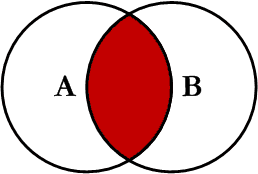
Normal Join


Matching rows from master table and detail table


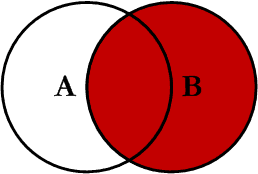
Master Outer Join


Returns the rows from detail table and the matching records of both the table.

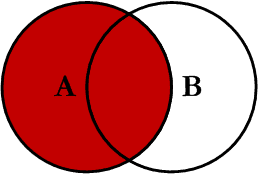
Detail Outer Join


Returns the rows from master table and the matching records of both the table.


Friday, 19 February 2016

Source Qualifier Transformation - Joins

Source Qualifier Transformation - Joins:

You can join two or more tables using the Source Qualifier Transformation. To achieve it, 

Set the Property of "User Defined Join" in the Properties Tab of the Edit Transformation.

Edit Transformations - Properties Tab


Mappng Designer


This works based on the below query:

select * from employees e,departments d where e.department_id=d.department_id;


Left Outer Join SQL Query - HR Schema


Thursday, 18 February 2016

Source Qualifier Transformation - Filter

Source Qualifier Transformation - Filter:

Using Source Qualifier Transformation,

You can filter the rows of the source database by adding a where clause in the Source Filter in the Properties Tab of the Edit Transformation.

The Intergration Service adds a WHERE clause to the default query.

Edit Transformations - Properties Tab - Source Filter


Mappng Designer


This works based on the below query:

select * from employees e,departments d where e.department_id=d.department_id and d.department_name='IT';


Left Outer Join SQL Query - HR Schema


In the Workflow Manager, the session properties check the Source Filter Properties of Souce Qualifier Properties in the Mapping Tab.

Workflow Manager - Edit Task - Mapping Tab - SQ Properties - Source Filter

Wednesday, 3 February 2016

Source Qualifier Transformation - Sort

Source Qualifier Transformation - Sort:

Using Source Qualifier Transformation,

You can Sort the rows of the source by specifying the number of ports.

The Intergration Service adds a ORDER BY clause to the default SQL query.

Note: The Order of the column in the Source Qualifier Transformation should be order of number of ports which we specify for Sort Port.


Edit Source Qualifier Transformation - No of sorted ports


Mappng Designer


This works based on the below query:

select * from employees e,departments d where e.department_id=d.department_id and d.department_name='IT' ORDER BY first_name;


Left Outer Join SQL Query - HR Schema


In the Workflow Manager, the session properties check the Number of sorted ports Properties of Souce Qualifier Properties in the Mapping Tab.


Workflow Manager -Edit Task - Mapping Properties - SQ Properties